Find What You're Looking for Here:

Showing posts with label photo guestbook. Show all posts

Saturday, June 29, 2013

Guest Book Number Two

I just posted earlier today about Shutterfly.com and their current deal on photo-books.  Well after seeing such a great deal, this got me thinking that maybe my first guest book, just wasn't enough.  The way I designed it, there are 9 pages (size 8x11) for guests to sign.  With almost 150 guests invited to the wedding, I was getting worried that might not be enough room.  So, with the deal going on, I opted to make a second, identical guest book.

This will ensure that all of our guests have plenty of room to sign, write messages, etc.  Also, this might eliminate all of the traffic of guests standing around one book to sign.  Seems like a good plan to me!

Shutterfly Steal

Right now you can go to shutterfly.com and get an 8x11 photobook for just $9.  Use the code GUESTBOOK and you get the book for free and just have to pay shipping!  Awesome and these work great for wedding guestbooks.  

Check out our photo guestbook that I made here!

Tuesday, March 26, 2013

How To: Faded Pictures


A few people have asked me how to created the faded picture look that I used in my photo-guestbook.

All you need to do is change the 'lightness' of the pictures that you are using.  This can be done with almost any photo-editing software.  I used Photoshop myself (I've used it for all of my wedding related designs and I'm no addicted).  If you don't have Photoshop, but are interested, you can get a free 30-day trial here.  

Here's how I created my faded pictures in photoshop:

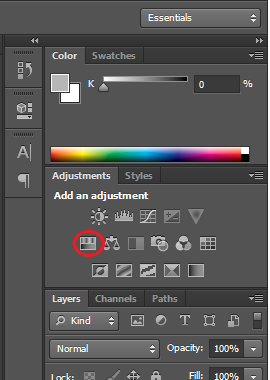
1) After opening your picture in Photoshop, click on the Hue/Saturation icon in Photoshop.  This is located on the right side of the screen.

Here is a picture of what the full screen will look like.  You can see the Hue/Saturation icon circled.

And here is a close-up of what that icon looks like.  
Show me your custom wedding guest books of engagement photos :  wedding reception guest book wedding photo Photoshop Hue

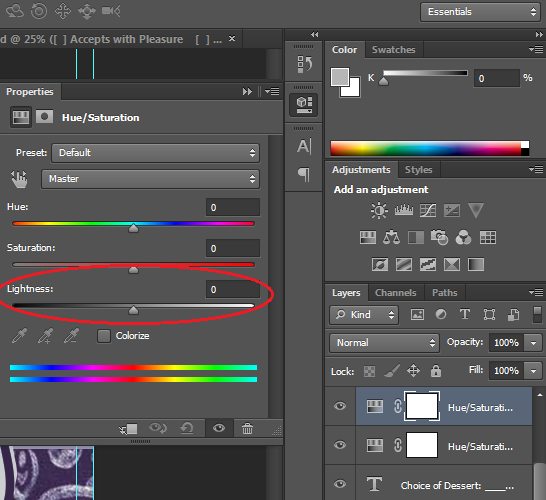
2) Clicking on the Hue/Saturation icon will open a box with several sliding bars that you can adjust.  You want to adjust the lightness of the picture.  You can do this by sliding the arrow or by changing the number in the box.  


I found that a 'lightness' of +75 was perfect for my photobook - at this level you could still see the image, yet it is light enough for guests to write on.

That's it!  Only 2 steps.  

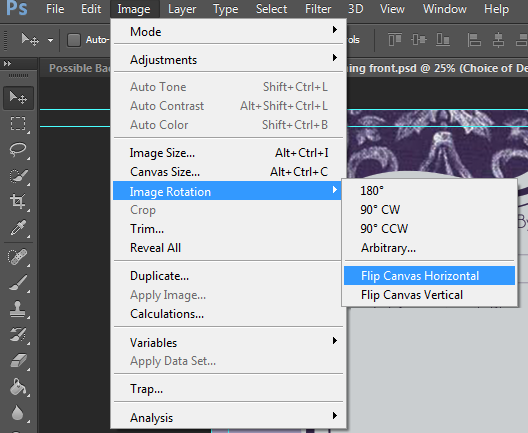
**We also decided to flip the image to created a mirrored look.  To do that just click on  Image >  Image Rotation > Flip Canvas Horizontally